Taking card payments with Square
Connect your own Square account so shoppers can pay by card on your shop, your pay page and at your booth, with the money landing straight in your Square.
Card payments on LocaliBuy run through your own Square account. You connect it once, and after that shoppers can pay you by card. The money lands in your Square, the same as a sale you ring up on your phone at a show. LocaliBuy never holds it.
What connecting Square unlocks
- Card at checkout. Shoppers get a Credit card choice in your cart. When they place the order, they go to Square's secure checkout to pay, then come back to their order page.
- Shipping. This one catches people out. A shipped order can't be paid in cash, so you can't switch shipping on until card payments are connected. Until then, Delivery Options shows a Connect Square button where the Shipping switch would be.
- Your pay page. The tap-to-pay page you show at your booth gets a Pay by card button, with Card, Google Pay or Apple Pay underneath. A shopper scans your QR, types an amount, and taps. (Your listing has to be published for that page to work.)
- Event Sales. Card joins the payment methods you can tap when you log a sale at a show.
How to connect it
- Open Payments. It's also the Payments & Tax tile on your My Shop board.
- Find the Card tile in the Payment Options grid.
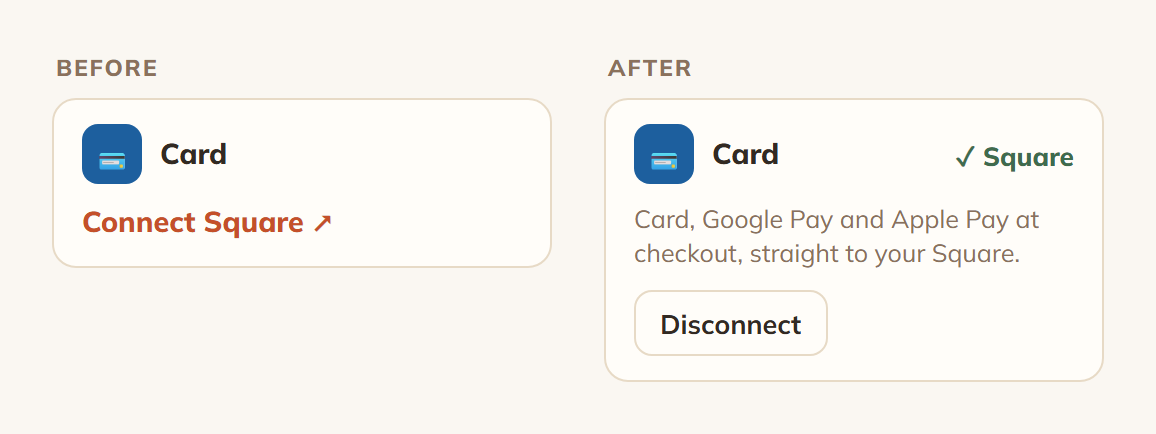
- Tap Connect Square.
- Sign in to Square and approve. If you don't have a Square account yet, you can make one right then. You've got an hour to finish before the link goes stale, so there's no need to rush.
Square sends you back to your Payments page when it's done.
How to tell it worked
The Card tile changes. A green Square tick appears beside the word Card, and the tile now reads "Card, Google Pay and Apple Pay at checkout, straight to your Square." A Disconnect button sits under that.
If the tile still says Connect Square, it didn't finish. Nothing was broken or half saved, so just tap it again.
If it says no location was found
Sometimes the tile connects but shows "No Square location found - reconnect or add a location in Square." Card payments won't work in that state. Square needs at least one location on your account. Add one in your Square dashboard, come back, and connect again.
Sales tax on your pay page
When someone pays by card on your pay page, we read the sales taxes set up in your own Square, keep the ones Square itself would charge on a hand typed amount, and bill them the same way. The shopper sees the tax under the amount before they pay.
Connected Square a while ago and your tax isn't showing there? Tap Disconnect and connect again. Older connections never gave us permission to read your Square taxes, so those charges quietly go out with no tax until you reconnect.
Your shop's checkout is a separate thing. That uses the rate you type into the Sales Tax? question at the top of the Payments page.
Staying connected
You don't have to do anything to keep it going. The connection renews itself in the background before it can expire.
Refunds
Paid card orders can be refunded from your Orders board. Open the order, choose to cancel it, and pick the option that refunds the total and cancels. The money goes back to the buyer through Square, and the order reopens as unpaid.
Disconnecting
Disconnect removes the connection and switches card payments off. Your Square account itself isn't touched, and you can connect again any time. One thing worth knowing: if shipping was switched on, shoppers stop being offered it the moment card payments go away.